

Auto caption generator for long videos
Upload a video and get word-by-word captions you can fix by hand, burned into the clip in one of four styles or exported as SRT, VTT and TXT files.
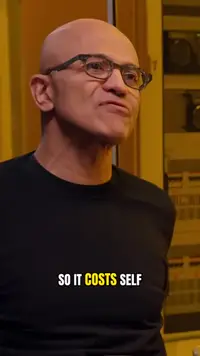
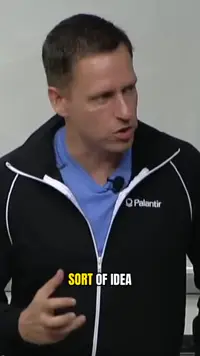
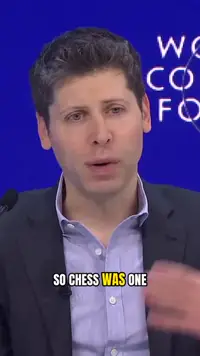
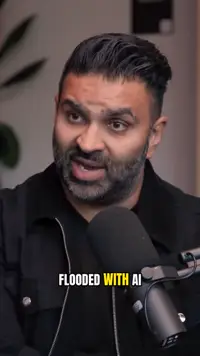
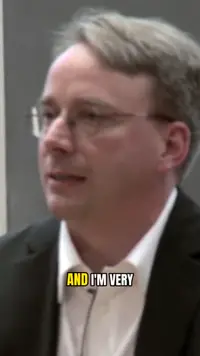
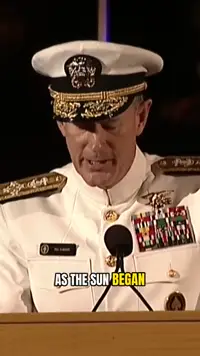
The same clip in four caption styles
Press play to see how the auto caption generator burns each style into the same eight seconds of video, laid out again for every size from 9:16 to 16:9. Every style burns into the MP4 by default; you can turn captions off, and download the SRT, VTT or TXT file either way.
Highlight
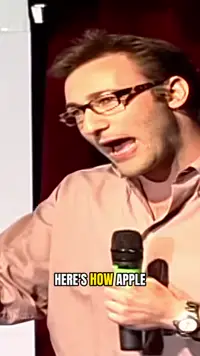
The default. Big uppercase white letters with a thick black outline, lit up word by word: each word turns yellow as it’s said. Use it for vertical clips people watch with the sound off.
Clean
White semi-bold text with a soft shadow and no background. Use it for interviews and talks where the speaker’s face should stay clear.
Bold
Uppercase white text with a hard black outline, without the yellow word. Use it over bright or busy footage that would swallow thinner letters.
Boxed
White text on a dark box. Use it for low-contrast scenes, or wide clips where classic subtitles feel right.
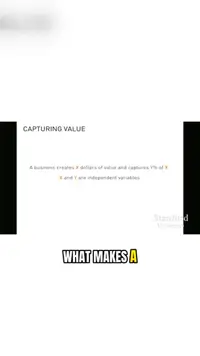
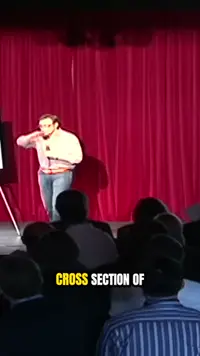
From “The Last Mover Advantage”, a clip of Peter Thiel’s lecture “Competition is for Losers” at Y Combinator, cut to 9:16 and captioned with Pogclip.
Word-by-word captions you can edit
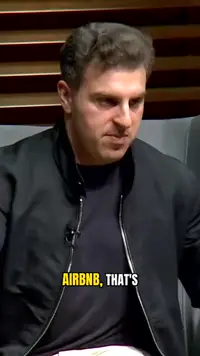
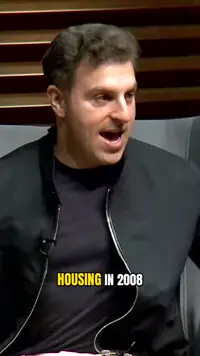
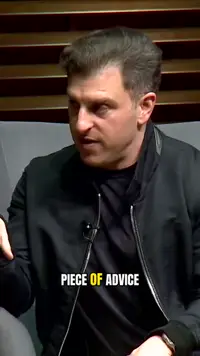
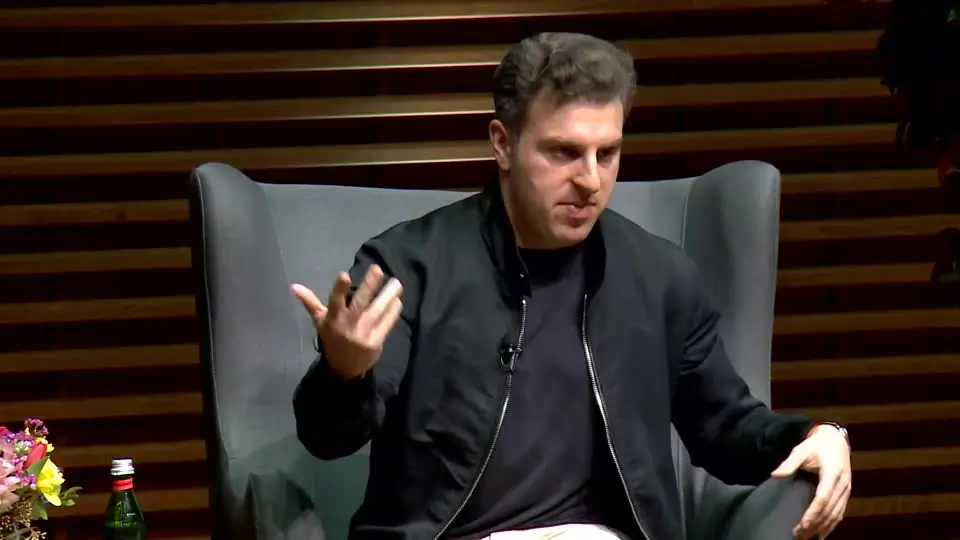
You get word-by-word captions timed to the voice, so the Highlight style can light up each word as it’s said. In this Stanford GSB interview, Brian Chesky says “advice I’ve” so fast that the two words run together and come out as “ice”. To fix a spot like that, click the word in the editor and retype it.
From Brian Chesky’s interview at Stanford GSB, cut to 9:16 and captioned with Pogclip.
Every other word and all the timing stay where they were, and the fix carries to every size you export, whether that’s 9:16, 4:5, 1:1 or 16:9.
Captions generated from the whole transcript
A caption generator that writes a few seconds at a time tends to break mid-phrase and put punctuation in odd places. Pogclip transcribes the whole video first, so each caption line follows the sentence it belongs to. Every word is timed to when it is spoken, which is what lets the Highlight style light up each word as it is said.
Subtitle generator with four ways out
Burn the captions into the picture, or use it as a subtitle generator and download them as SRT or VTT files, or plain text. You can do both for the same clip.
Burned into the MP4
Captions are part of the picture, so they show on every platform, even where viewers keep the sound off.
SRT
The standard subtitle file. Upload it to YouTube, LinkedIn or most video players as closed captions viewers can switch on.
VTT
The subtitle format web video players read, for a clip you host on your own site.
TXT
Just the words, for show notes, a blog post or a quote you want to share.
How to add subtitles to a video in three steps
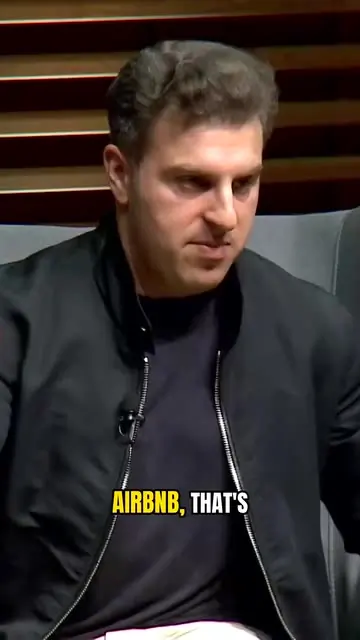
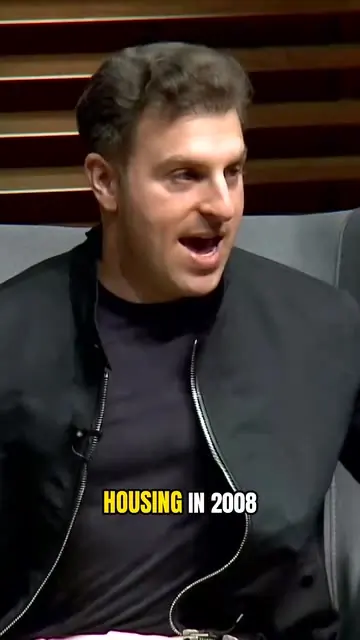
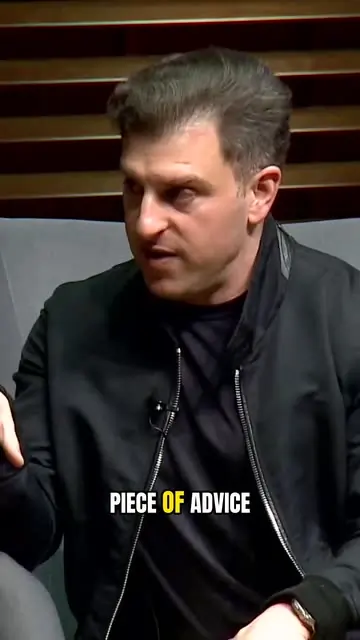
Upload a video or paste a link
Choose an MP4 up to 2 hours and 10 GB, or paste a YouTube link.
Fix the captions
Pogclip transcribes the video and times every word. Click a word to correct a name or a term.
Pick a style and export
Choose Highlight, Clean, Bold or Boxed, then download the MP4 with captions burned in, the SRT, VTT and TXT files, or both.
Captioning a video that’s already on YouTube? Paste the link into the YouTube video clipper.
Captions and the clip picker work together
Captions aren’t a separate job. The same transcript that times your captions is what Pogclip reads to find the moments worth posting, so a long recording comes back as short clips that are already scored, framed on the speaker and captioned. See how long video to shorts works, or check pricing.
Which videos get accurate captions
Clear speech gives the cleanest captions. Without speech there is nothing to caption.
Works well
- Interviews and podcasts
- Talks, lectures and lessons
- Webinars and panels
- Vlogs and talking-head videos
Not a good fit
- Music videos and songs
- Gameplay without commentary
- Videos without speech
- Speech in languages Pogclip doesn’t support yet
Frequently asked questions
How accurate are the captions?
Clear, steady speech comes out cleanest, while fast, unscripted talk is where words can run together and get misheard. Names, brands, jargon and accents are where any auto caption generator can slip, so you can click any word in the editor and retype it without losing its timing.
Can I upload just an audio file?
Not yet. Upload a video as an MP4, or paste a YouTube link.
What formats can I export captions in?
Burned into the MP4, or as separate SRT, VTT and TXT files, and you can do both for the same clip. Burned-in captions are part of the picture, so viewers can’t turn them off, which suits vertical clips that autoplay with the sound off. SRT and VTT are closed captions that viewers can switch on and off, on YouTube or in a web player.
Can I change the caption style?
Yes. Choose Highlight, Clean, Bold or Boxed and see the result in the preview before you export, or turn captions off. Captions are laid out again for each size you export: 9:16, 4:5, 1:1 and 16:9.
Are captions timed word by word?
Yes. Each word is timed to when it is spoken, and fixing a word keeps its timing.
Does it work in other languages?
Yes. Captions work for speech in English, Spanish, Portuguese, French, German and Italian.
Can I caption a video I didn’t record?
Only caption videos you own or have permission to use.
Can I try the subtitle generator before paying?
Yes. The Free plan gives you 60 credits every month, enough for an hour of video, with watermarked exports and no card needed.
Caption your next video
Start with 60 free credits every month. No card needed.
Want the clips picked for you too? See the AI clip maker