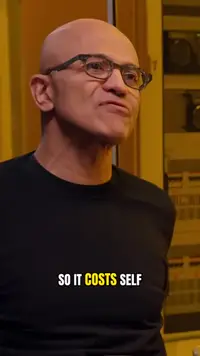













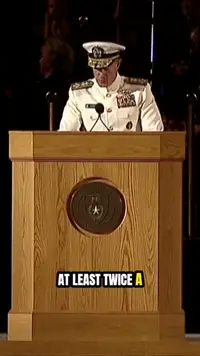


Video resizer: one upload, four sizes
Upload a long video once and export every clip as 9:16, 4:5, 1:1 or 16:9. Framing follows the speaker, and captions stay editable.
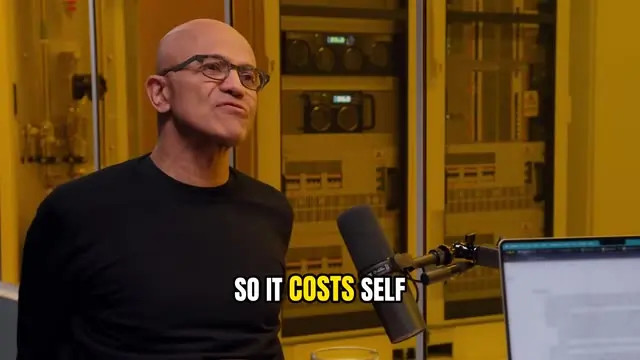
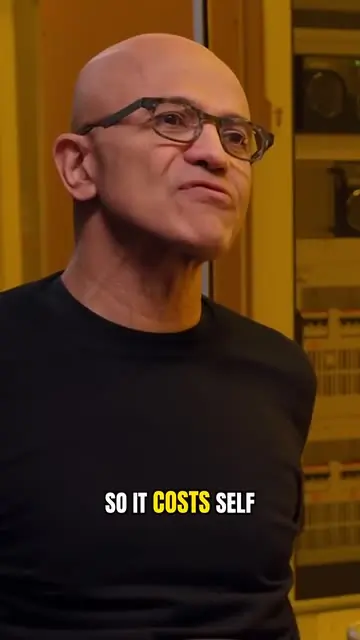
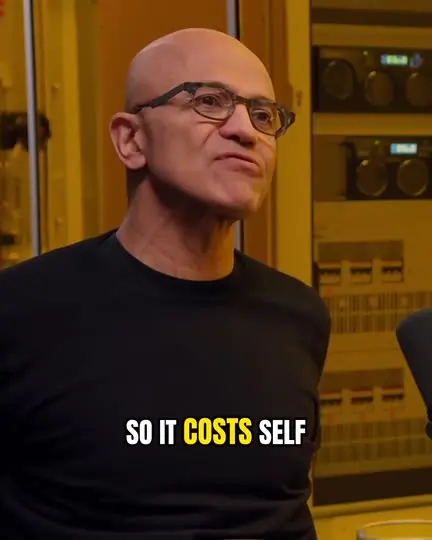
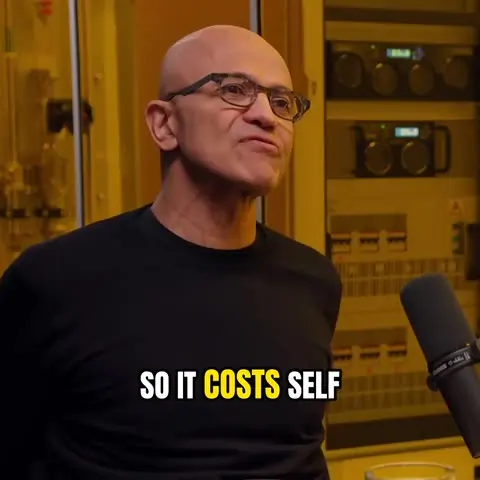
Resize a video once, export it four ways
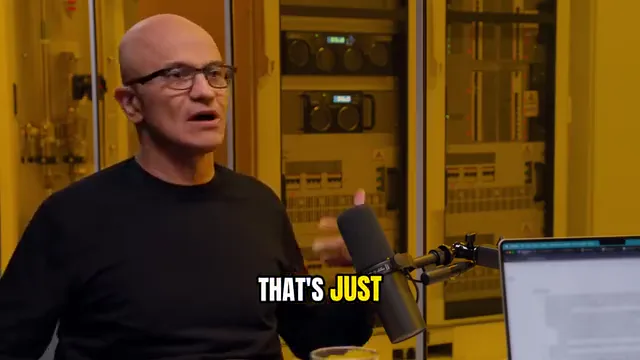
Every clip comes out in all four sizes from one export, so you never re-edit the same moment for each platform. Press play to watch the four sizes side by side.
When the speaker moves, the frame follows
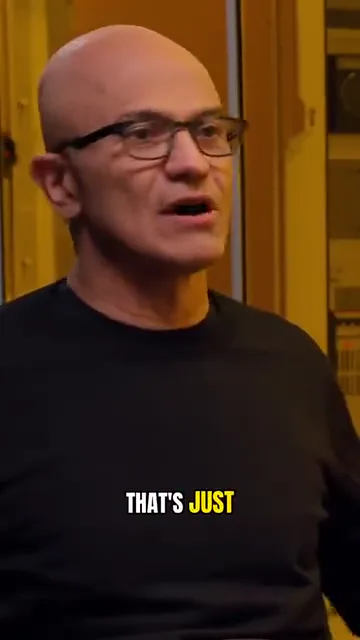
When you convert a horizontal video to vertical, you want the person talking to stay in the picture. The video resizer follows the speaker in every size, so you don’t set keyframes by hand. If you want a different crop, nudge the frame in the editor or switch the clip to a fixed crop and slide it over the speaker.
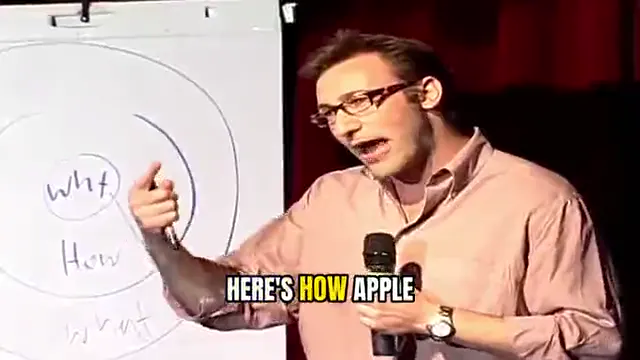
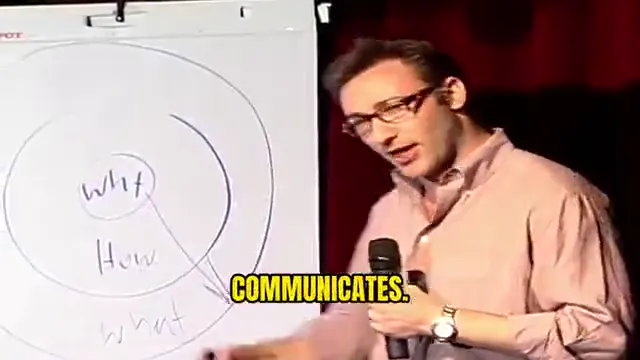
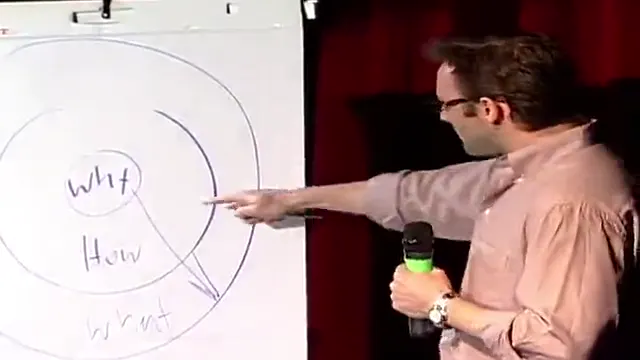
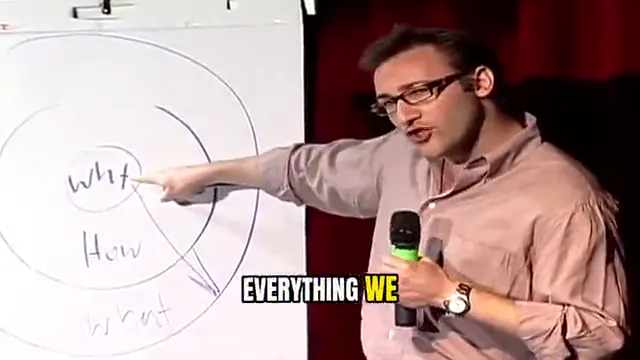


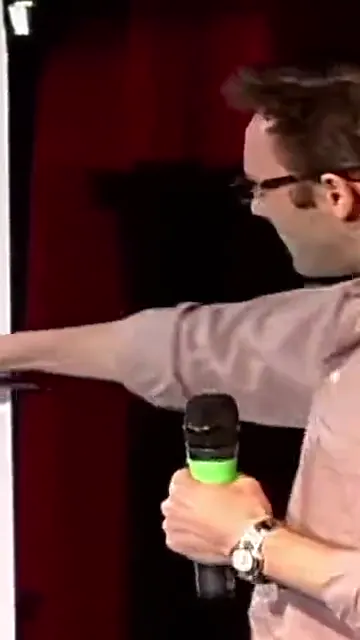
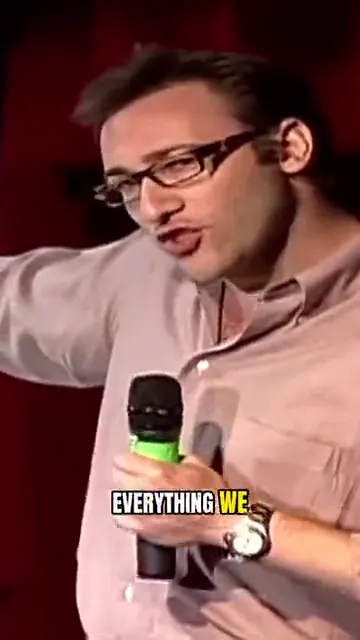
When someone moves a lot, check the preview before you export, and pick a wider size such as 4:5 or 1:1 to keep more of them in view.
Captions re-wrap in every size
Word-by-word captions are sized and placed again for each frame, in one of four styles, and fixing a word carries to all four sizes. You can burn captions into the video or download them as an SRT, VTT or TXT file.
Resize a video for TikTok, Instagram, YouTube and LinkedIn
Whether you need to resize a video for Instagram, post a vertical clip to TikTok and YouTube Shorts, or share a square cut on LinkedIn, you can export all four sizes at once from the same clip.
TikTok, Reels and YouTube Shorts
Full-screen 9:16 vertical, with the speaker centered and captions clear of the app’s buttons.
Instagram and Facebook feed
4:5 portrait takes up more of the feed than a square while still showing the whole speaker.
LinkedIn and X
1:1 square plays well in both feeds on desktop and phone.
YouTube and your website
16:9 widescreen for a regular YouTube upload, a website or a slide deck.
How to change the aspect ratio of a video
You don’t install anything: our video resizer runs in your browser, and you pick the sizes when you export.



Upload a video or paste a link
Choose an MP4 up to 2 hours and 10 GB, or paste a YouTube link. Horizontal or vertical both work.
See what the AI picked
Pogclip reads the transcript and returns the moments that stand on their own, best first, each with a score and a reason.
Pick sizes and export
Tick 9:16, 4:5, 1:1 or 16:9, nudge the framing in any size if you want, and the video resizer exports every size in one go.
Your video is already on YouTube? Use the YouTube video clipper and paste the link. Working from a recording that runs an hour or two? See how long video to shorts works.
Video aspect ratio changer: the sizes and what they’re for
| Size | Shape | Exported at | Where it goes |
|---|---|---|---|
| 9:16 | Vertical | 1080 × 1920 | TikTok, Instagram Reels, YouTube Shorts |
| 4:5 | Portrait | 1080 × 1350 | Instagram and Facebook feed posts |
| 1:1 | Square | 1080 × 1080 | LinkedIn and X feeds |
| 16:9 | Widescreen | 1920 × 1080 | YouTube, websites and presentations |
Every size comes out as an MP4 (H.264 video, AAC audio) at full HD, at the sizes in the table. Each one is rendered fresh from your original upload, not from another export, so quality isn’t lost twice.
One thing to know when you resize video from widescreen to vertical: a 9:16 frame cut from a 1080p widescreen recording is a slice about 608 pixels wide, enlarged to 1080, so it looks a little softer than the original. A 4K upload stays sharp. Pasted YouTube links come in at up to 1080p.
Every size is included on every plan. See pricing.
Which videos work with the resizer
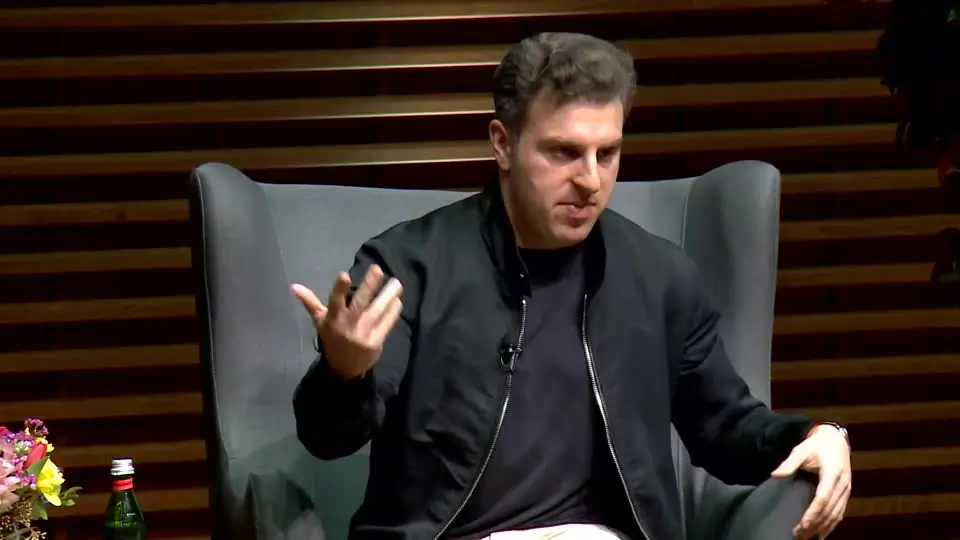
Pogclip finds the clips to resize from what people say, so spoken videos work best. A 1:16:55 podcast gave the clip above.
Works well
- Interviews and podcasts
- Talks, lectures and lessons
- Webinars and panels
- Vlogs where someone talks throughout
Not a good fit
- Gameplay without commentary
- Music videos and performances
- Videos without speech
- Languages Pogclip doesn’t support yet
Frequently asked questions
What sizes can the video resizer export?
9:16, 4:5, 1:1 and 16:9, as full-HD MP4. Pick any of them, or all four, for each clip; one clip in several sizes counts as a single export. There’s nothing to install: it’s an online video resizer, so you upload, pick sizes and export in your browser.
Does the video resizer crop the speaker out of the frame?
Automatic framing follows whoever is talking, so most of the time nobody gets cut out when you resize a video. Fast walking or big moves across a stage can still push a speaker’s face to the edge of a narrow vertical frame for a moment. Check every clip in the preview before you export, and switch to a fixed crop if you want to lock the frame in place.
Do captions stay on after I change the size?
Yes. Word-by-word captions are laid out again for each size, in the style you chose, and burned into every MP4 you export. You can also turn them off.
Can I get the caption file separately?
Yes. Download the captions as SRT, VTT or TXT alongside the clips.
Can I turn a vertical video into 16:9?
Yes. Any source can go to any of the four sizes, in either direction.
How long can the video be?
Up to 2 hours and 10 GB. Upload an MP4 or paste a YouTube link.
Does it work on videos in other languages?
Yes. Pogclip works with speech in English, Spanish, Portuguese, French, German and Italian. Clips and captions both come from the transcript, so you choose the language spoken in the video before it starts.
Can I resize a gameplay or music video?
Not well. Pogclip finds the clips to resize from what people say, so videos without speech give few or none. The Free plan’s 60 monthly credits let you try one before you pay.
Resize your next long video
Start with 60 free credits every month. No card needed.
Want the full picture? See the AI clip maker